
You have great content. Your SEO is solid. Your website ranks on Google. But when people ask ChatGPT or Perplexity about your industry, your website never gets mentioned. Why?
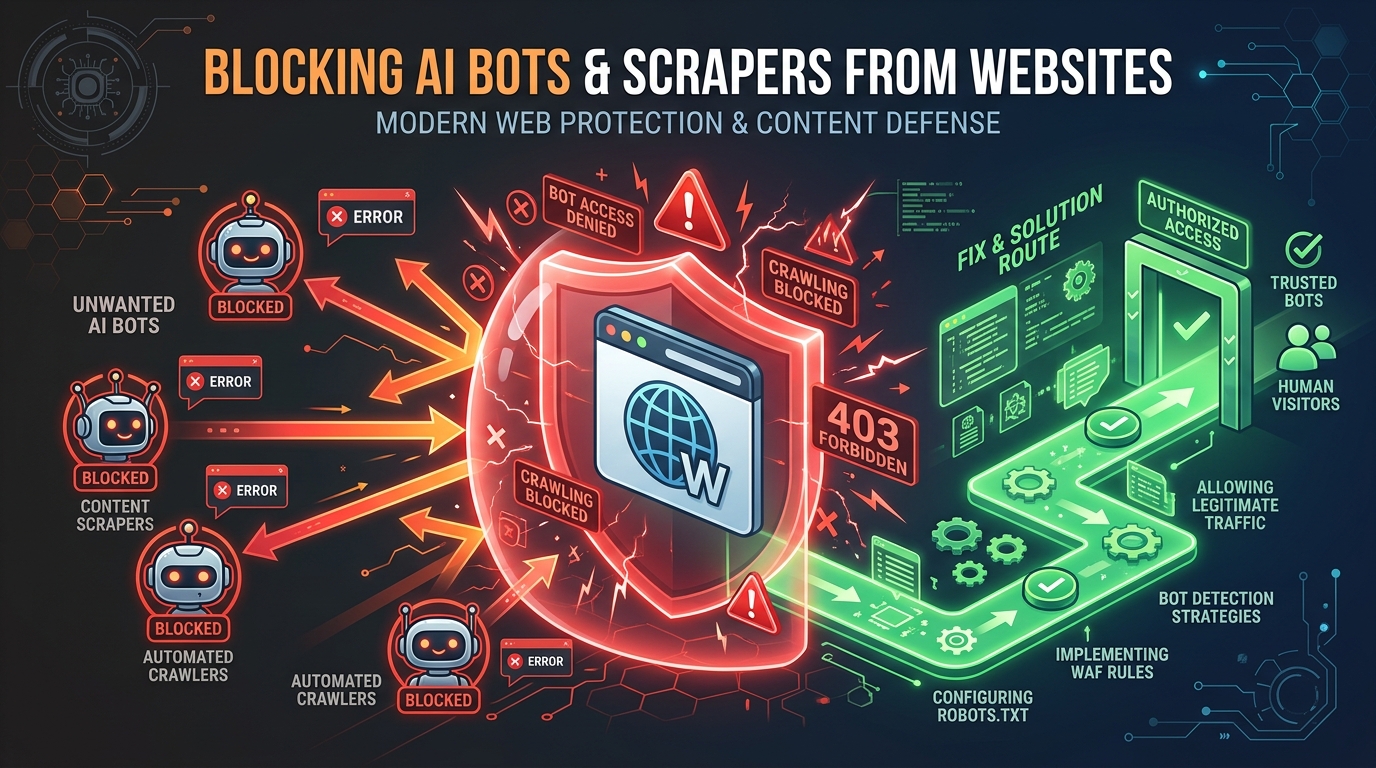
The most common reason is simple: AI bots cannot access your website. Before any AI engine can cite your content, its crawler needs to read your pages. If something blocks that crawler, your website is invisible to AI search, no matter how good your content is.
Based on our experience analyzing thousands of websites with the AI Crawler Check tool, here are the 7 most common reasons AI bots cannot crawl your website, and the exact steps to fix each one.
Quick Diagnostic
Before reading further, run a free AI crawler check on your website. It takes 10 seconds and shows you exactly which AI bots are blocked and why. Then come back to this guide for the fix.
Reason 1: robots.txt Blocks AI Crawlers
This is the #1 cause. Your robots.txt file contains rules that specifically block AI crawlers, or uses a broad wildcard rule that blocks them unintentionally.
How This Happens
Common patterns we see in robots.txt files:
# This blocks ALL bots including AI crawlers
User-agent: *
Disallow: /

# This specifically blocks major AI bots
User-agent: GPTBot
Disallow: /

User-agent: ClaudeBot
Disallow: /

User-agent: PerplexityBot
Disallow: /
Sometimes website owners add these rules intentionally when they first heard about AI crawlers in 2024, before AI search became important. Other times, a developer or plugin added them without the owner's knowledge.
How to Fix
- Check your robots.txt with the AI Crawler Check tool to see which bots are blocked
- Edit your robots.txt to allow the AI search bots you want. See our robots.txt creation guide for the recommended configuration
- Use the Robots.txt Generator tool to create an optimized robots.txt file
- Upload the new robots.txt to your website root directory
# Recommended: allow AI search bots
User-agent: GPTBot
Allow: /

User-agent: ChatGPT-User
Allow: /

User-agent: ClaudeBot
Allow: /

User-agent: PerplexityBot
Allow: /

User-agent: Google-Extended
Allow: /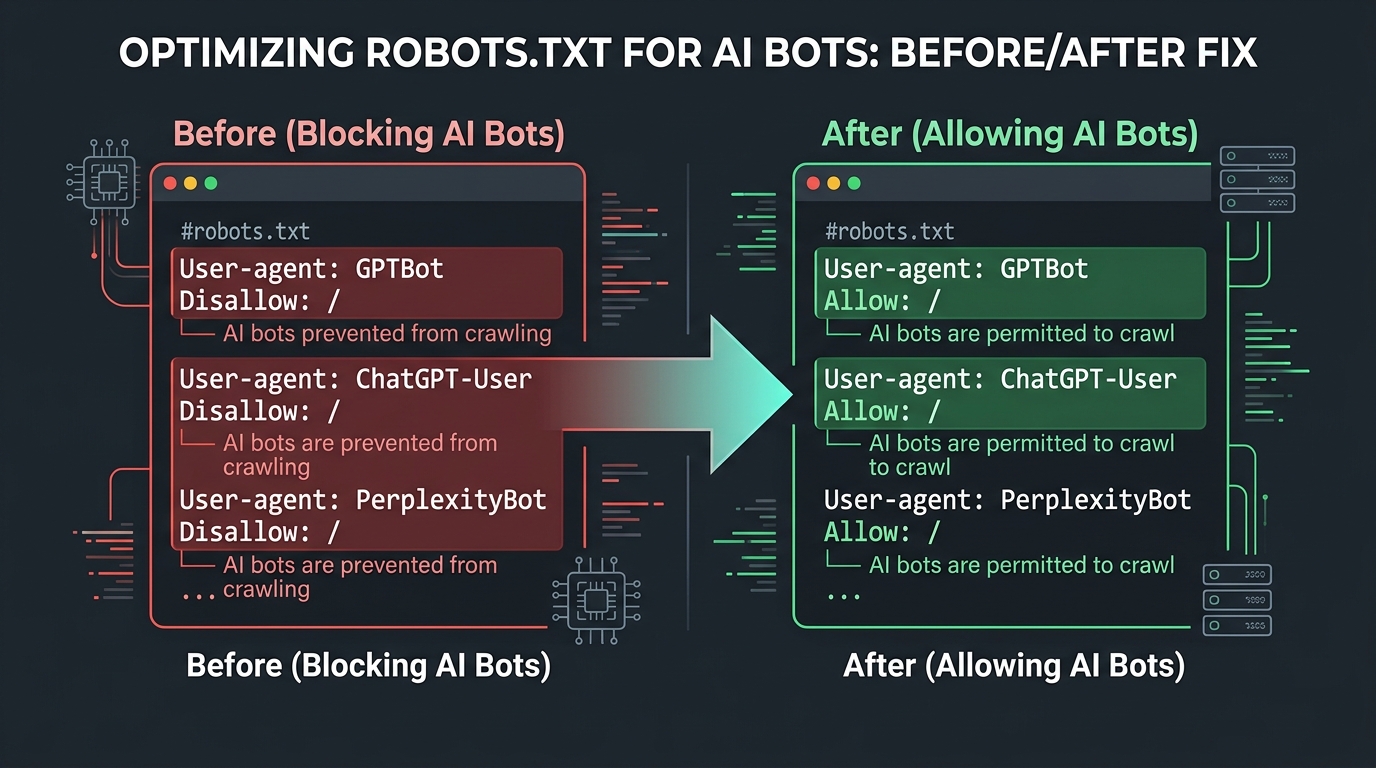
Reason 2: Cloudflare or CDN Firewall Blocking
This is the sneakiest cause because your robots.txt might say "Allow" but the firewall blocks AI bots before they can even read it.
How This Happens
If your website uses Cloudflare, Sucuri, Imperva, or another WAF (Web Application Firewall), these services can block AI bot requests with a 403 Forbidden response or a JavaScript challenge page. The most common causes:
- Bot Fight Mode: Cloudflare's automated bot detection may classify AI crawlers as unwanted bots
- WAF rules: Custom firewall rules that block non-browser user agents
- JavaScript challenges: CAPTCHA or challenge pages that bots cannot solve
- Rate limiting: Overly aggressive rate limiting that throttles all bot traffic
How to Detect
The AI Crawler Check tool includes WAF detection. If your robots.txt says bots are allowed but the tool reports a WAF block, you will see a yellow warning banner. You can also check your Cloudflare analytics for blocked requests from known AI bot user agents.
How to Fix
For Cloudflare:
- Go to Security > Bots in your Cloudflare dashboard
- In the "Configure Super Bot Fight Mode" section, set "Verified Bots" to "Allow"
- Create WAF custom rules to allow known AI bot user agents (GPTBot, ClaudeBot, PerplexityBot)
- Check Security > Events to verify AI bots are no longer being challenged
For other WAFs: Add AI bot user agents to your allowlist. Consult your WAF provider's documentation for specific instructions.
Reason 3: CMS or Plugin Default Settings
Many CMS platforms and security plugins block AI crawlers by default. You may not even know these settings exist.
Common Offenders
- WordPress + Wordfence: Wordfence can block AI crawlers based on user agent patterns
- WordPress + Sucuri: Sucuri's WAF may challenge or block bot-like requests
- Shopify: Some Shopify apps add restrictive robots.txt rules
- Wix: Custom security settings can block non-standard crawlers
- Squarespace: Limited robots.txt customization may accidentally block AI bots
How to Fix
- Check your security plugin settings for bot-blocking options
- Look for "Block AI Crawlers" or "Block GPTBot" toggles and disable them
- Review your CMS robots.txt editor for any auto-generated blocking rules
- After making changes, re-run the AI crawler check to verify
Reason 4: Server-Level IP Blocking
Some hosting providers or server configurations block requests from data center IP addresses, which is where AI crawlers operate from.
How This Happens
Server firewalls (iptables, fail2ban, .htaccess rules) may block IP ranges associated with cloud providers like AWS, Google Cloud, or Microsoft Azure. AI crawlers run from these data centers, so they get blocked even though the robots.txt allows them.
How to Fix
- Whitelist known AI bot IP ranges (OpenAI publishes their IP ranges publicly)
- Review server firewall rules for overly broad IP blocks
- Check .htaccess for deny rules that might catch AI bot IPs
- Contact your hosting provider if you cannot access firewall settings
Reason 5: JavaScript-Only Content
If your website's content is rendered entirely by JavaScript (single-page applications, heavy React/Vue/Angular apps), some AI crawlers may not be able to see it.
How This Happens
Some AI crawlers do not execute JavaScript. When they fetch your page, they only see the initial HTML response, which might be empty or contain just a loading spinner. Your actual content, loaded by JavaScript after the page renders, is invisible to these crawlers.
How to Fix
- Server-side rendering (SSR): Use Next.js, Nuxt.js, or similar frameworks that render HTML on the server
- Static site generation (SSG): Pre-build HTML pages at build time
- Hybrid approach: Ensure critical content (headings, main text, FAQs) is in the initial HTML
Reason 6: noindex or Meta Robots Restrictions
Even if AI bots can reach your pages, meta robots tags or X-Robots-Tag headers might tell them not to use the content.
Common Restrictions
<!-- This tells ALL bots not to index the page -->
<meta name="robots" content="noindex, nofollow">

<!-- This specifically targets AI bots -->
<meta name="GPTBot" content="noindex">

<!-- X-Robots-Tag in HTTP headers -->
X-Robots-Tag: noindex, nofollow
How to Fix
- Check your page source code for meta robots tags
- Check HTTP response headers for X-Robots-Tag
- Remove any noindex tags that were added accidentally
- If you use WordPress, check your SEO plugin settings (Yoast, Rank Math) for noindex pages
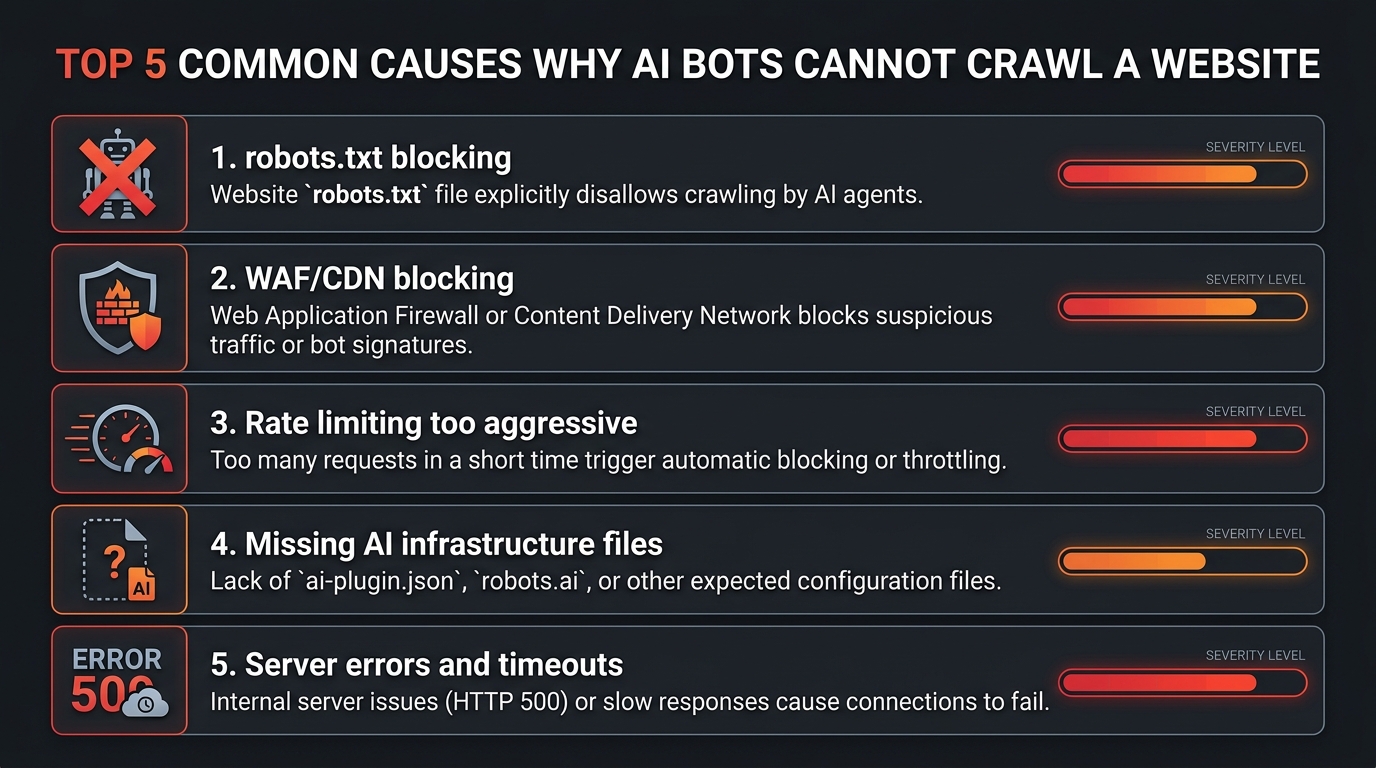
Reason 7: Missing AI Discoverability Signals
Even when AI bots can access your content, they might not prioritize it if you are missing key signals that help them understand and trust your website.
Missing Signals That Reduce AI Visibility
- No llms.txt file: AI engines cannot quickly understand your site's purpose and authority. Create one now.
- No structured data: Missing schema markup means AI engines have to guess the context of your content
- No sitemap.xml: Without a sitemap, AI crawlers may not discover all your important pages
- Weak E-E-A-T signals: No author pages, no credentials, no original data
How to Fix
Follow the AI SEO audit checklist to add these signals systematically. The AI Crawler Check tool already checks for llms.txt and llms-full.txt. If those files are missing, your AI Visibility Score takes a hit.
How to Run an AI Crawl Test
Before working through the seven reasons above one by one, run an AI crawl test. It tells you whether you have a problem at all, and usually which of the seven it is, in about a minute. There are three levels, and most people only need the first.
Level 1: test the rules
Run your domain through AI Crawler Check. This parses your robots.txt the way a crawler does and reports which AI bots are allowed, blocked or partially restricted. If a bot shows as blocked here, the cause is reason 1 and you can stop looking. To test several pages or subdomains at once, use the bulk URL checker.
Level 2: test the response
Robots.txt permission is not the same as access. A firewall can block a bot that your robots.txt welcomes, and that mismatch is reason 2. Test it by requesting your own page while identifying as a bot:
# What a normal browser sees
curl -s -o /dev/null -w "%{http_code}\n" https://example.com/

# What GPTBot sees. A different status code is your answer.
curl -s -o /dev/null -w "%{http_code}\n" \
  -A "Mozilla/5.0 (compatible; GPTBot/1.0; +https://openai.com/gptbot)" \
  https://example.com/
Read the crawl errors literally. A 403 is a firewall or WAF refusing the bot, which points at reason 2 or 4. A 429 is rate limiting, so the bot is allowed but throttled. A 503 that only appears for bots is usually bot-protection software. A 200 that returns almost no text is reason 5, JavaScript-only content.
Level 3: check the server logs
The first two levels test what would happen. Your server logs record what did. This is the only way to confirm an AI crawler actually visited, and it settles the common case where everything looks correctly configured yet nothing appears in AI answers:
# Which AI crawlers reached you, and how often
grep -Ei "gptbot|claudebot|perplexitybot|google-extended" access.log | wc -l

# Group the status codes they received
grep -Ei "gptbot|claudebot|perplexitybot" access.log \
  | awk '{print $9}' | sort | uniq -c | sort -rn
Zero matching lines means no AI crawler has reached your site at all, which is a discoverability problem (reason 7) rather than a blocking problem. Plenty of lines returning 403 means the opposite: they are trying and being refused. Those two findings lead to completely different fixes, which is why this step is worth the effort. See tracking AI bot crawls in server logs for the full method.
Complete Diagnostic Checklist
Use this checklist to systematically diagnose why AI bots cannot crawl your website:
Get your AI Visibility Score and see which bots are blocked
Check robots.txt for blocking rules
Look for Disallow: / under AI bot user agents or User-agent: *
Check WAF/CDN settings
Verify Cloudflare Bot Fight Mode is not blocking AI bots
Review security plugin settings
Check Wordfence, Sucuri, or other plugins for bot-blocking features
Verify content is in HTML (not JS-only)
View page source to check if content is in the initial HTML response
Check meta robots and X-Robots-Tag
Look for noindex, nofollow tags in page source and HTTP headers
Add missing AI discoverability signals
Create llms.txt, add schema markup, submit sitemap
Re-run the AI Crawler Check to verify fixes
Confirm your AI Visibility Score has improved
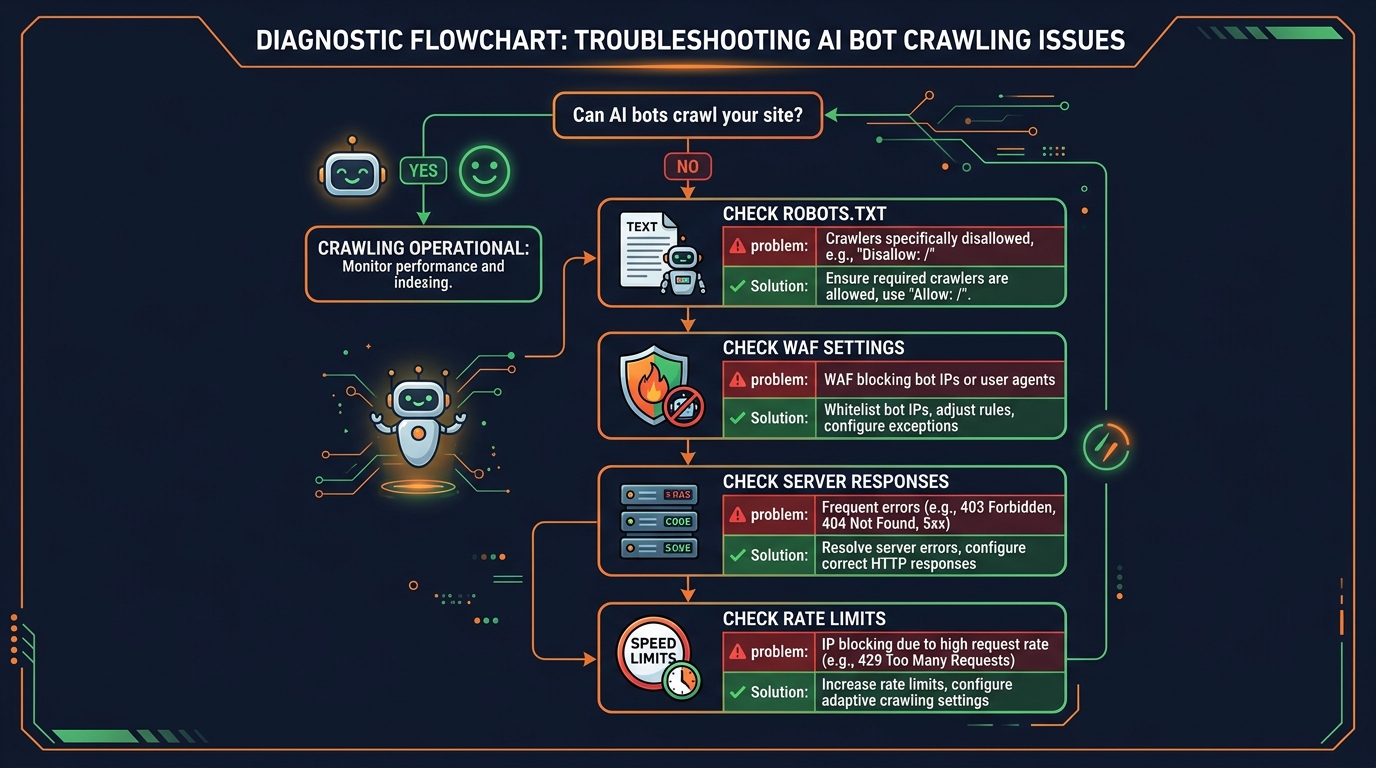
What Happens After You Fix AI Bot Access
Once you have removed the barriers, here is what to expect:
Week 1 to 2: Bots Start Crawling
AI crawlers will start visiting your website. You can verify this in your server logs and analytics.
Week 2 to 4: Content Gets Indexed
AI engines process and index your content. They start including it in their knowledge base.
Month 2+: Citations Begin
If your content has strong E-E-A-T signals and answers questions clearly, AI engines will start citing you in generated answers.
Remember: fixing bot access is necessary but not sufficient. You also need:
- High-quality, expert content with original insights
- Strong E-E-A-T signals (author credentials, original data)
- Proper structured data
- An llms.txt file for AI discoverability
- A solid GEO + SEO strategy
Conclusion: Don't Let Technical Issues Make You Invisible
AI search is growing fast. ChatGPT, Perplexity, and Google AI Overviews now answer millions of queries daily. Every query where your website could be cited but is not is a missed opportunity for traffic, brand awareness, and authority.
The good news: most AI bot access issues have simple fixes. The bad news: you might not even know you have a problem. That is why the first step is always the same.
Take Action Now
Run a free AI Crawler Check on your website
Enter your domain, get your AI Visibility Score, and see exactly which of the 196+ AI bots are blocked. It takes 10 seconds. Then use this guide to fix any issues.
For a complete optimization plan, check our other guides: